PROC IMPORT and EXPORT in SAS – Complete Beginner Guide
PROC IMPORT and EXPORT in SAS – Complete Beginner Guide
Introduction
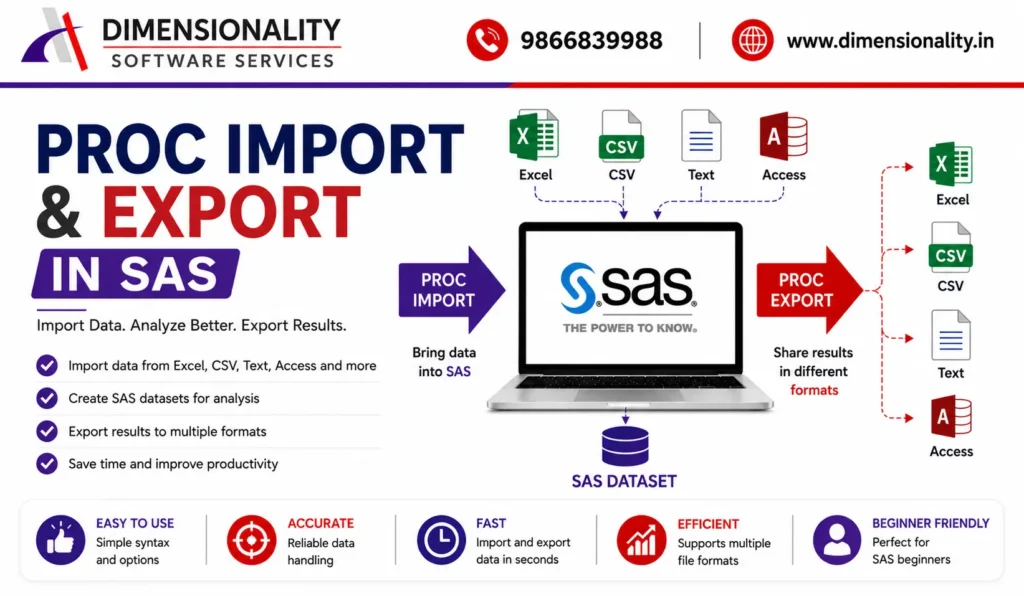
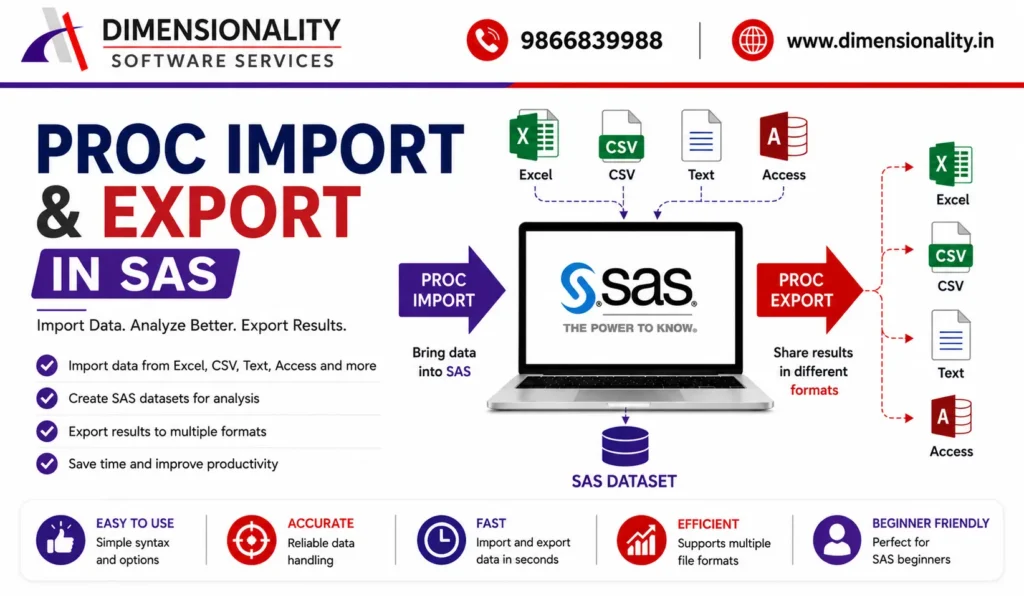
In real-world data analysis, information rarely exists in just one format. Organizations often store data in Microsoft Excel, CSV, Text, Access databases, or other external sources. Before performing data cleaning, validation, reporting, or statistical analysis, this data must be brought into SAS.
Likewise, after completing the analysis, the processed SAS datasets often need to be shared with clients, research teams, or business users in commonly used formats such as Excel or CSV.
This is where PROC IMPORT and EXPORT in SAS become essential.
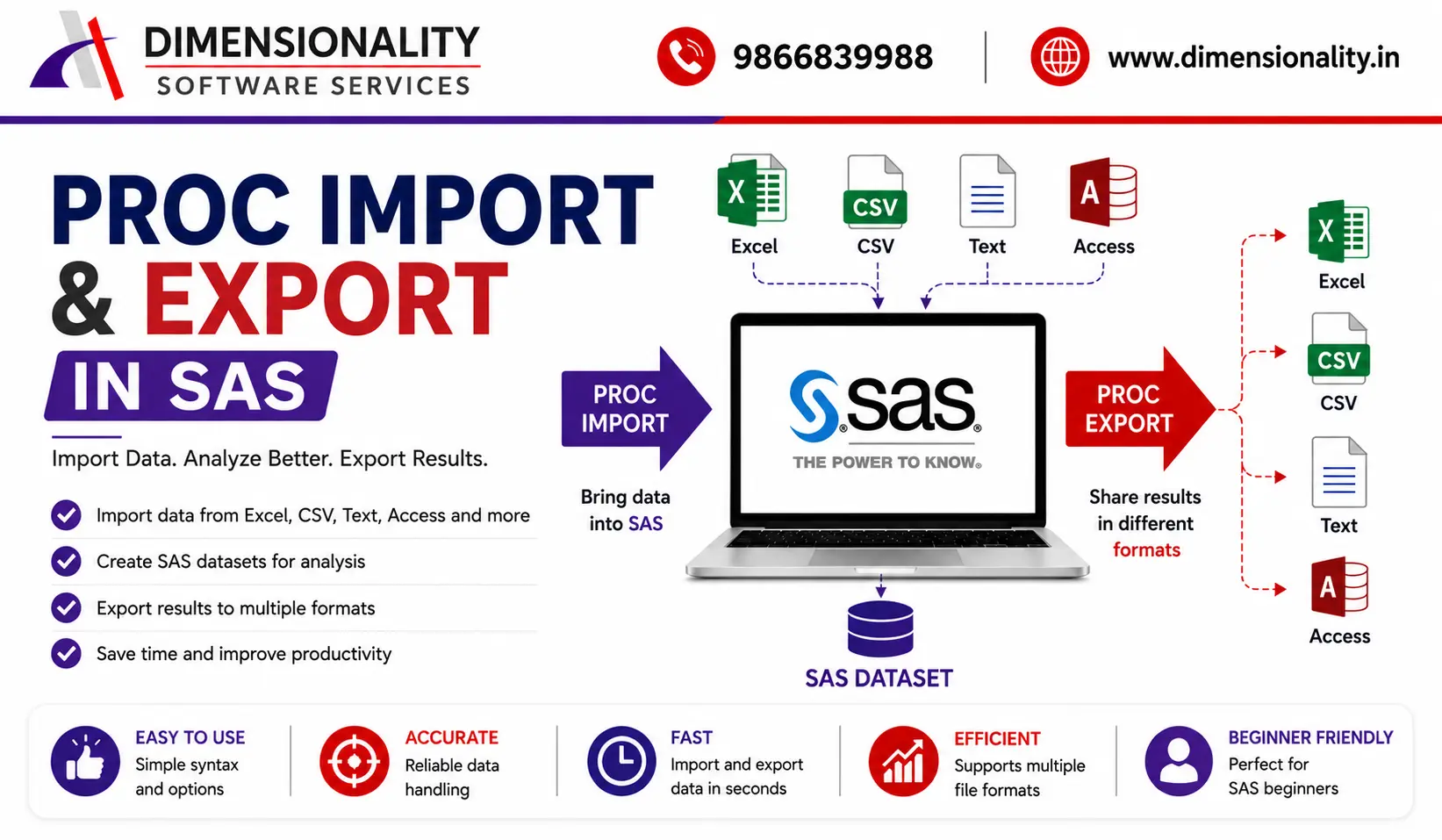
The PROC IMPORT procedure allows SAS to read external files and convert them into SAS datasets, while PROC EXPORT writes SAS datasets into external files for reporting and sharing.
Whether you are planning to start your career through our Clinical SAS Training in Hyderabad, or exploring our Clinical SAS Course – Complete Training Guide, understanding PROC IMPORT and PROC EXPORT is one of the first programming skills every SAS professional should master.
Whether you are learning Clinical SAS, Base SAS, or working in pharmaceutical and healthcare industries, understanding these procedures is an essential skill.
In this tutorial, you’ll learn how to import and export different file types using practical SAS examples.
What is PROC IMPORT in SAS?
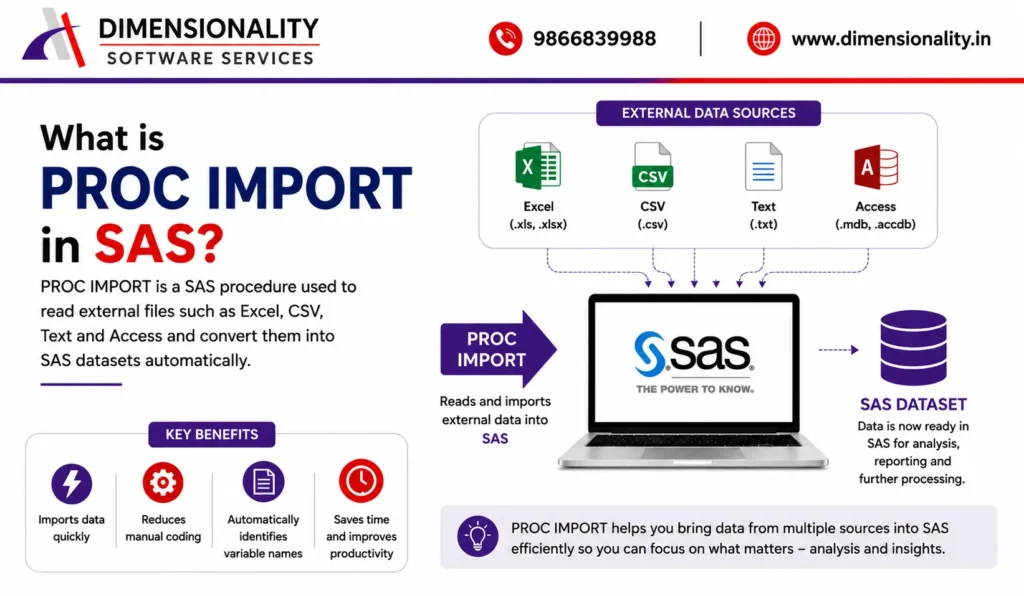
PROC IMPORT is a SAS procedure used to read external data files and create SAS datasets automatically.
If you are learning SAS Programming for Clinical Studies, PROC IMPORT is one of the first procedures you will use while working with laboratory, demographic, and adverse event datasets.
It supports various file formats including:-
- Microsoft Excel (.xls)
- Microsoft Excel (.xlsx)
- CSV files
- Text files
- Tab-delimited files
- Microsoft Access databases
Why Use PROC IMPORT?
PROC IMPORT provides several advantages:-
- Imports data quickly
- Reduces manual coding
- Automatically identifies variable names
- Supports multiple file formats
- Saves development time
- Ideal for beginners and professionals
Students enrolled in our SAS Course for Pharmacy & Life Science Students practice importing Excel, CSV, and clinical datasets as part of real-time assignments.
For complete syntax and advanced options, refer to the official SAS PROC IMPORT Documentation.
General Syntax of PROC IMPORT
- PROC IMPORT
- DATAFILE=”file-path”
- OUT=dataset-name
- DBMS=file-type
- REPLACE;
- RUN;
Explanation
| Option | Description |
| DATAFILE | Specifies the external file location |
| OUT | Creates the SAS dataset |
| DBMS | Specifies the external file type |
| REPLACE | Replaces an existing dataset |
Supported File Types in PROC IMPORT
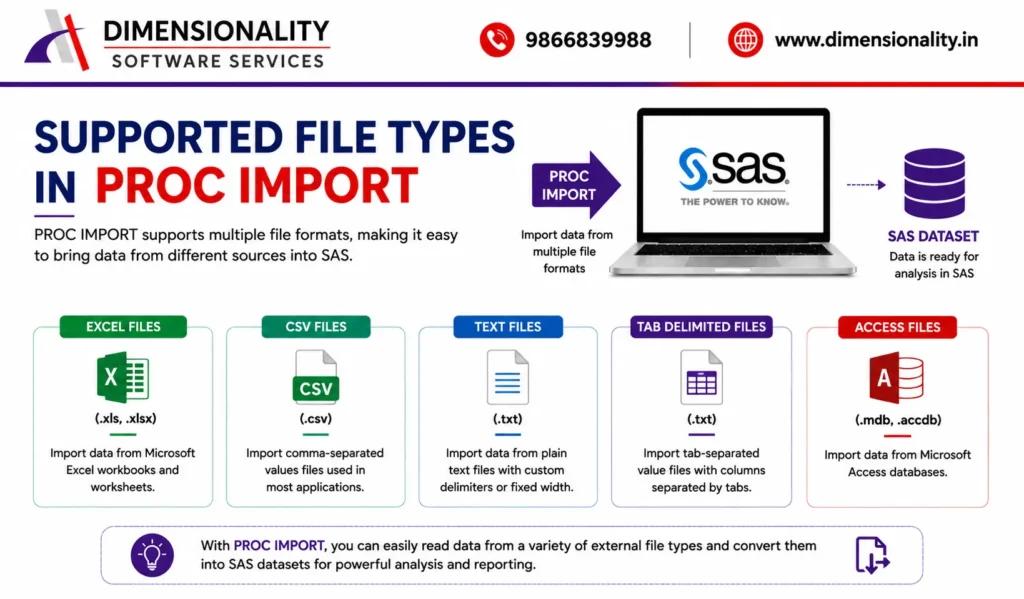
PROC IMPORT supports many popular external file formats.
| File Type | Extension | DBMS Option |
| Excel 97–2003 | .xls | XLS |
| Excel 2007 and later | .xlsx | XLSX |
| CSV | .csv | CSV |
| Text File | .txt | DLM |
| Tab Delimited | .txt | TAB |
| Microsoft Access | .mdb/.accdb | ACCESS |
Importing Excel Files into SAS
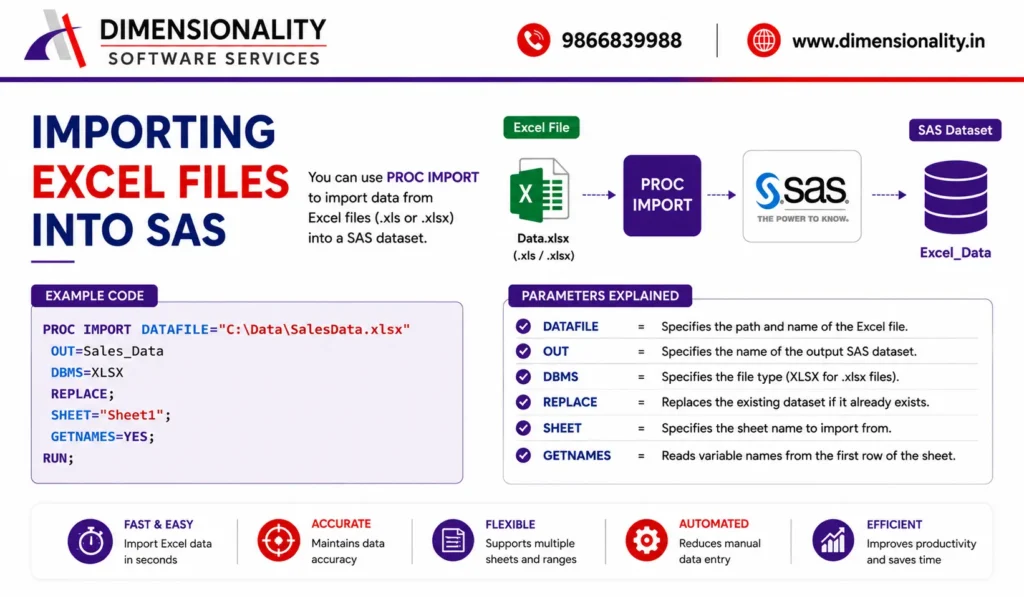
Microsoft Excel is one of the most commonly used data sources in Clinical SAS projects.
Explanation
- proc import
- datafile=”C:\Data\patient.xlsx”
- out=patient_data
- dbms=xlsx
- run;
This program imports the Demographics worksheet into a SAS dataset named patient_data.
Learn more about Excel workbook formats from the official Microsoft Excel Documentation.
Understanding the SHEET Option
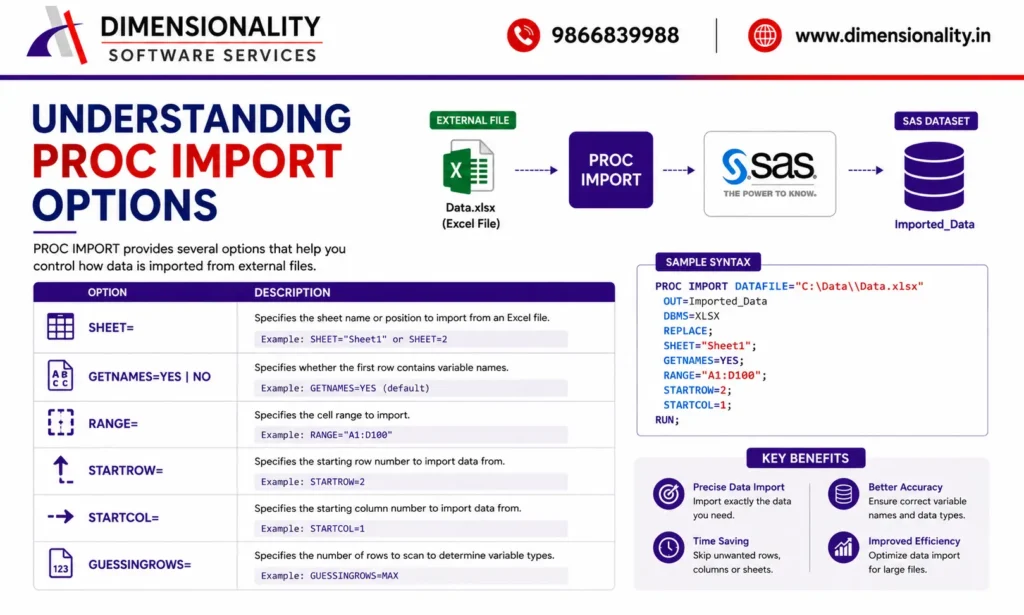
Excel files may contain multiple worksheets.
The SHEET option tells SAS which worksheet should be imported.
sheet=”Screening”;
Using GETNAMES Option
GETNAMES controls whether SAS reads the first row as variable names.
getnames=yes;
or
getnames=no;
YES
- First row becomes variable names
NO
- SAS assigns default names like
- VAR1
- VAR2
- VAR3
Importing Only a Specific Cell Range
Sometimes you don’t need the entire worksheet.
The RANGE option imports only selected cells.
range=”Sheet1$A1:F100″;
Benefits include:–
- Faster processing
- Smaller datasets
- Better performance
STARTROW and ENDROW
These options specify where SAS should begin and stop reading rows.
Example
- startrow=5;
- endrow=50;
Only rows 5 through 50 are imported.
STARTCOL and ENDCOL
These options restrict imported columns.
Example
- startcol=2;
- endcol=6;
Only columns B through F are imported.
NAMEROW Option
Sometimes the header isn’t in the first row.
Example
- namerow=3;
SAS uses row 3 as the variable names.
Handling Mixed Data Types
Excel columns sometimes contain both numbers and text.
Example
Value
100
250
Missing
300
Without proper handling, SAS may misread the column.
Using
mixed=yes;
forces SAS to treat the values consistently, reducing import issues.
Importing CSV Files
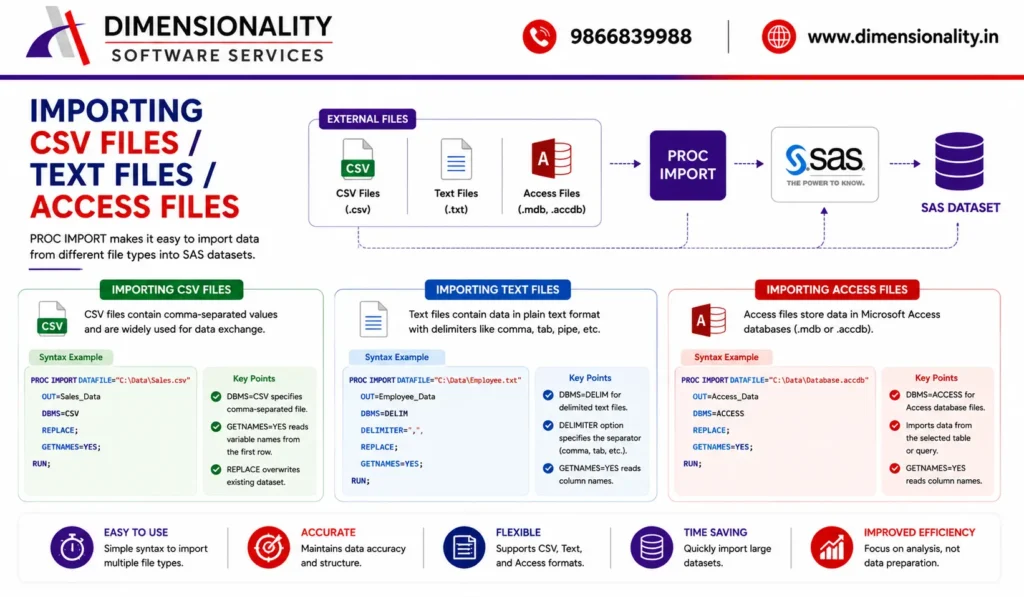
CSV files are widely used because they are lightweight and compatible with most software.
Example
- proc import
- datafile=”C:\Data\patient.csv”
- out=patient
- dbms=csv
- replace;
- getnames=yes;
- run;
CSV formatting standards are defined in the RFC 4180 CSV File Standard.
Importing Text Files
Text files can also be imported using PROC IMPORT.
- proc import
- datafile=”C:\Data\patient.txt”
- out=patient
- dbms=dlm
- replace;
- getnames=yes;
- run;
Importing Microsoft Access Files
Healthcare organizations sometimes store clinical data in Microsoft Access databases.
Example
- proc import
- table=”Demographics”
- out=demo
- dbms=access;
- database=”C:\Data\Clinical.accdb”;
- run;
For additional information about Microsoft Access databases, see the official Microsoft Access Documentation.
What is PROC EXPORT?
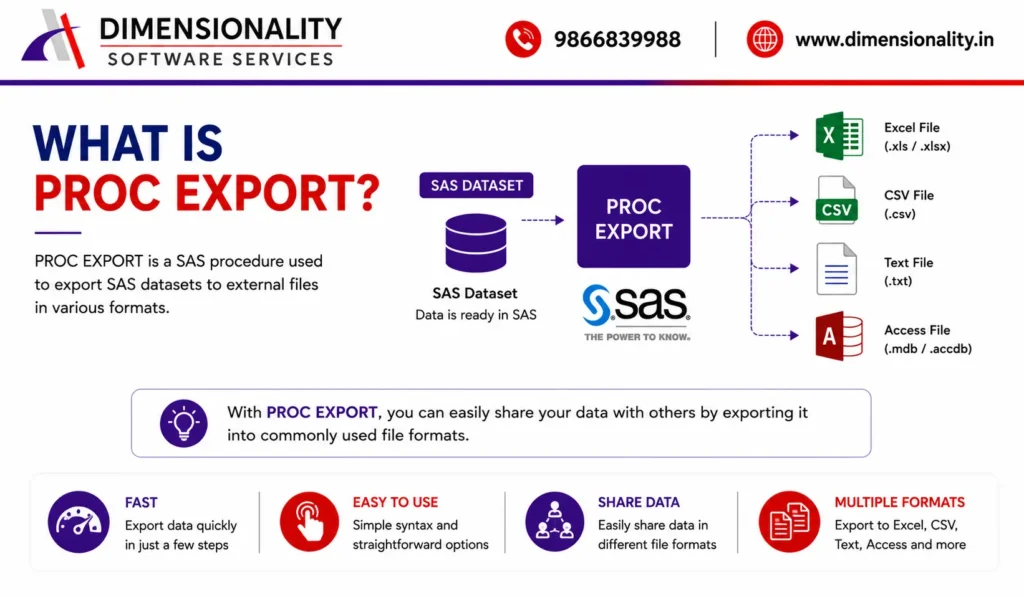
PROC EXPORT transfers SAS datasets into external files.
It is commonly used to:-
- Share reports
- Send data to clients
- Export cleaned datasets
- Create Excel reports
- Generate CSV files
Advanced export options are available in the official SAS PROC EXPORT Documentation.
General Syntax of PROC EXPORT
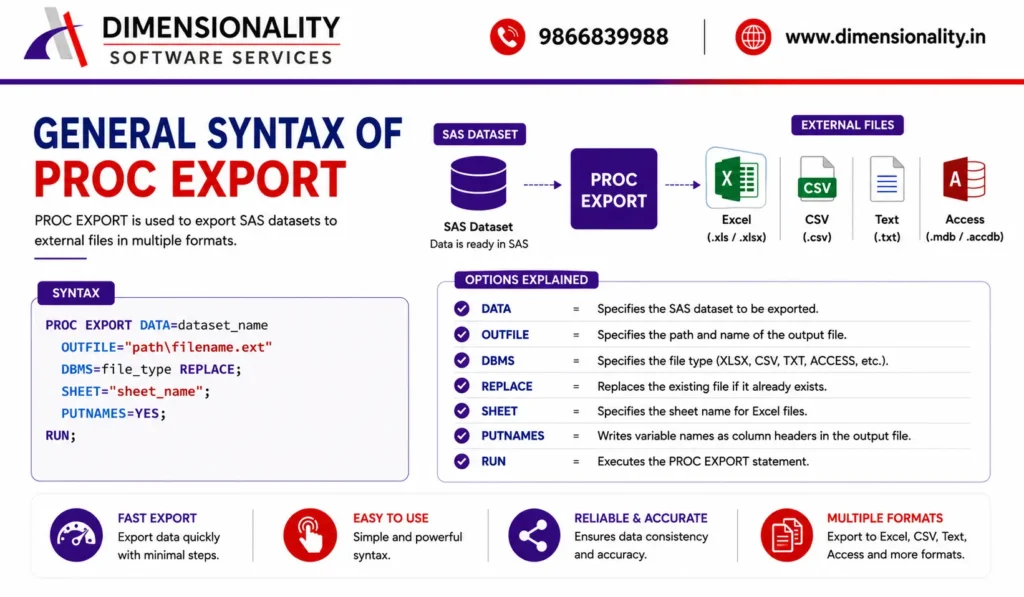
- proc export
- data=dataset-name
- outfile=”file-path”
- dbms=xlsx
- replace;
- run;
Exporting SAS Data to Excel
Example
- proc export
- data=sashelp.class
- outfile=”C:\Reports\Class.xlsx”
- dbms=xlsx
- replace;
- sheet=”Students”;
- run;
Exporting Selected Variables
You can export only required variables.
- proc export
- data=sashelp.class
- (keep=name age sex)
- outfile=”C:\Reports\Students.xlsx”
- dbms=xlsx
- replace;
- run;
Exporting Selected Observations
- proc export
- data=sashelp.class(firstobs=5 obs=20)
- outfile=”C:\Reports\Sample.xlsx”
- dbms=xlsx
- replace;
- run;
Exporting CSV Files
- proc export
- data=sashelp.class
- outfile=”C:\Reports\Students.csv”
- dbms=csv
- replace;
- run;
CSV files can be opened in:-
- Excel
- Notepad
- Google Sheets
- Power BI
- Tableau
Exporting Text Files Using DATA NULL
For customized text reports, many SAS programmers use the DATA NULL step.
Example
- data _null_;
- set sashelp.class;
- file “C:\Reports\students.txt”;
- put name age sex;
- run;
This method provides greater control over formatting than PROC EXPORT.
Common PROC IMPORT Options
| Option | Purpose |
| DATAFILE | Input file |
| OUT | SAS dataset |
| DBMS | File type |
| SHEET | Worksheet name |
| GETNAMES | Reads column headers |
| RANGE | Selected cells |
| STARTROW | Starting row |
| ENDROW | Ending row |
| STARTCOL | Starting column |
| ENDCOL | Ending column |
| NAMEROW | Header row |
| REPLACE | Overwrite existing dataset |
Common PROC EXPORT Options
| Option | Purpose |
| DATA | SAS dataset |
| OUTFILE | Output location |
| DBMS | Export format |
| REPLACE | Overwrite existing file |
| SHEET | Worksheet name |
| LABEL | Export variable labels |
Best Practices
When using PROC IMPORT and PROC EXPORT:-
- Verify the file path before execution.
- Use the correct DBMS option for the file type.
- Keep variable names meaningful.
- Check imported data using PROC CONTENTS and PROC PRINT.
- Use REPLACE carefully to avoid overwriting important datasets.
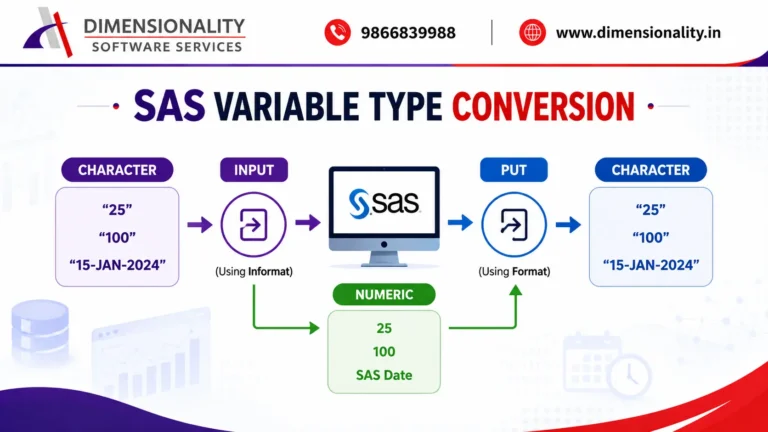
- Validate date, numeric, and character variables after import.
Conclusion
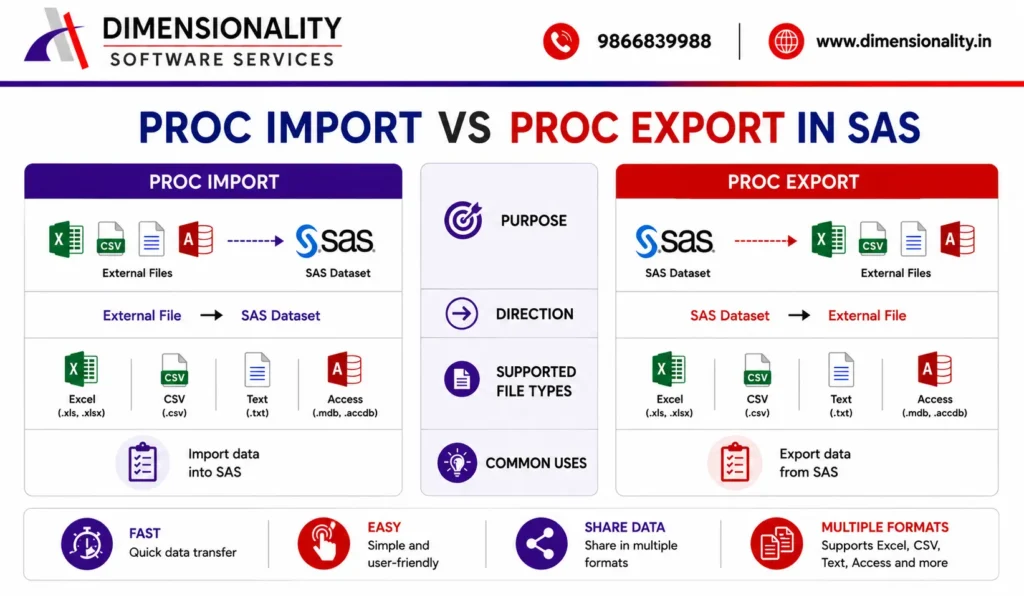
PROC IMPORT and PROC EXPORT are among the most widely used procedures in SAS for exchanging data with external applications. They simplify the process of importing Excel, CSV, Text, and Access files into SAS and exporting SAS datasets for reporting and collaboration.
By understanding options such as DBMS, GETNAMES, SHEET, RANGE, STARTROW, ENDROW, and REPLACE, you can efficiently manage data exchange in real-world Clinical SAS projects. Mastering these procedures will help you build reliable data workflows and prepare datasets for analysis, reporting, and regulatory submissions.
If you’re searching for the Best Clinical SAS Training Institutes in Hyderabad with Placements, choosing a course that covers practical PROC IMPORT and PROC EXPORT programming can help you become job-ready.
Frequently Asked Questions (FAQs)
- What is PROC IMPORT in SAS?
- PROC IMPORT is a SAS procedure used to read external files such as Excel, CSV, Text, and Access databases into SAS datasets.
- What is PROC EXPORT in SAS?
- PROC EXPORT writes SAS datasets to external file formats like Excel, CSV, and Text for sharing and reporting.
- Which file formats can PROC IMPORT read?
- It supports Excel (.xls, .xlsx), CSV, Text, Tab-delimited files, and Microsoft Access databases.
- What does the DBMS option do?
- The DBMS option tells SAS the type of external file being imported or exported, such as XLSX, CSV, or ACCESS.
- Why is the GETNAMES option important?
- GETNAMES=YES uses the first row of the file as variable names, while GETNAMES=NO assigns default names like VAR1, VAR2, and VAR3.